Ground Control Points (GCPs) remain one of the most effective tools for improving the absolute accuracy of photogrammetric models. By providing known reference coordinates, they help ensure that reconstructed datasets are correctly aligned with real-world positions and meet required accuracy standards.
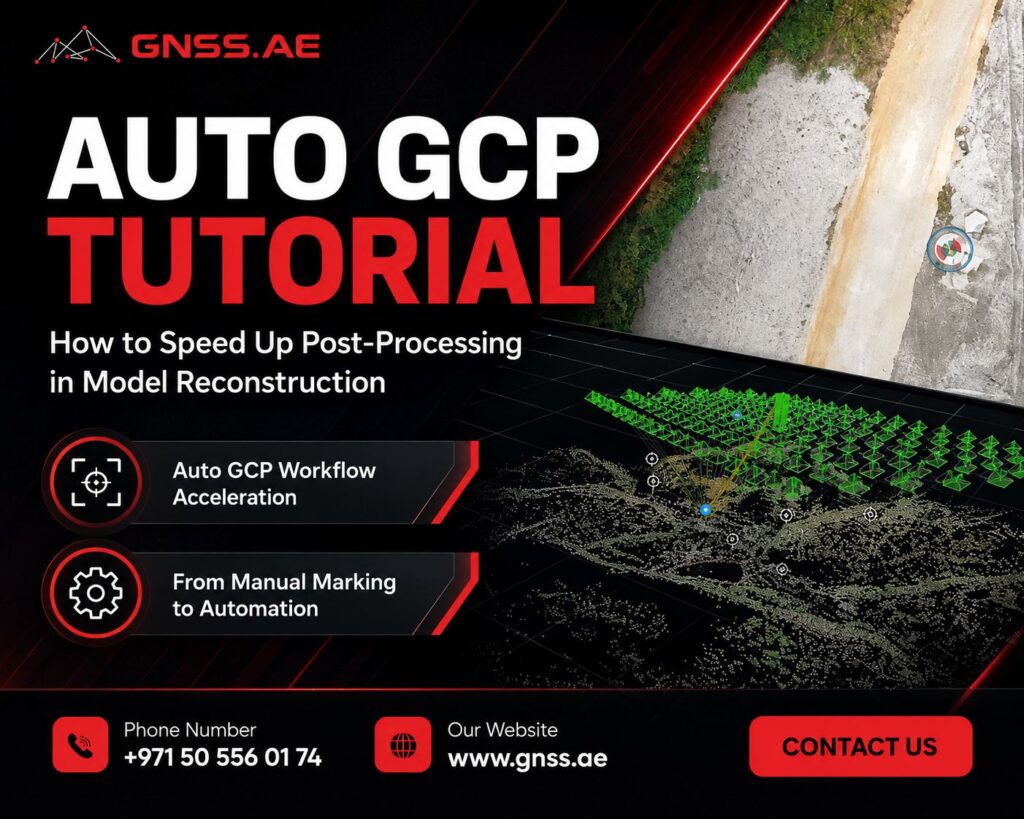
However, while GCPs improve accuracy, they also introduce additional work during processing. Traditionally, each control point must be manually identified and marked across multiple images before aerial triangulation can be completed. DJI Terra addresses this issue with its Auto GCP feature, which automatically detects and matches supported GCP targets within image datasets.
This tutorial explains how Auto GCP works in DJI Terra, the conditions required for reliable target detection, and the process of importing and using GCP data during reconstruction.
In a typical photogrammetry workflow, survey teams place GCPs across the project area and measure their coordinates using RTK or GNSS equipment. Once the flight is complete, those points must be identified within the captured imagery and linked to their surveyed coordinates.
Collecting the coordinates is usually straightforward. The time-consuming part comes later, when operators must locate each target across dozens or even hundreds of images and mark its exact position.
As project size increases, this task quickly becomes more demanding. A large dataset may contain thousands of photographs, with each GCP appearing in multiple images. Reviewing and marking these observations manually can add considerable time to the reconstruction process.
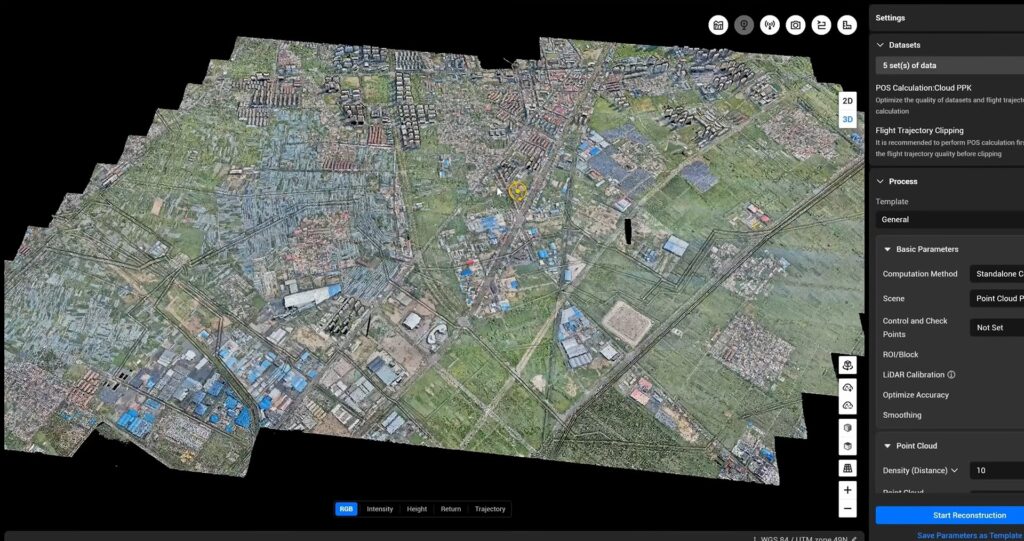
DJI Terra’s Auto GCP feature uses imported GCP coordinates together with automated target detection to locate supported GCP markers within aerial imagery.
When a target is successfully identified, DJI Terra automatically creates the corresponding image observations required for aerial triangulation. This reduces the need to manually search for and mark each control point across multiple photographs.
The greatest benefit is typically seen on projects with numerous GCPs and large image datasets, where manual point marking can become a significant part of the processing workflow.
Reliable Auto GCP detection depends on proper target placement before the survey begins.
Standard GCP targets should be distributed throughout the project area and positioned so they can be clearly captured by the drone during the flight. DJI recommends the following guidelines:
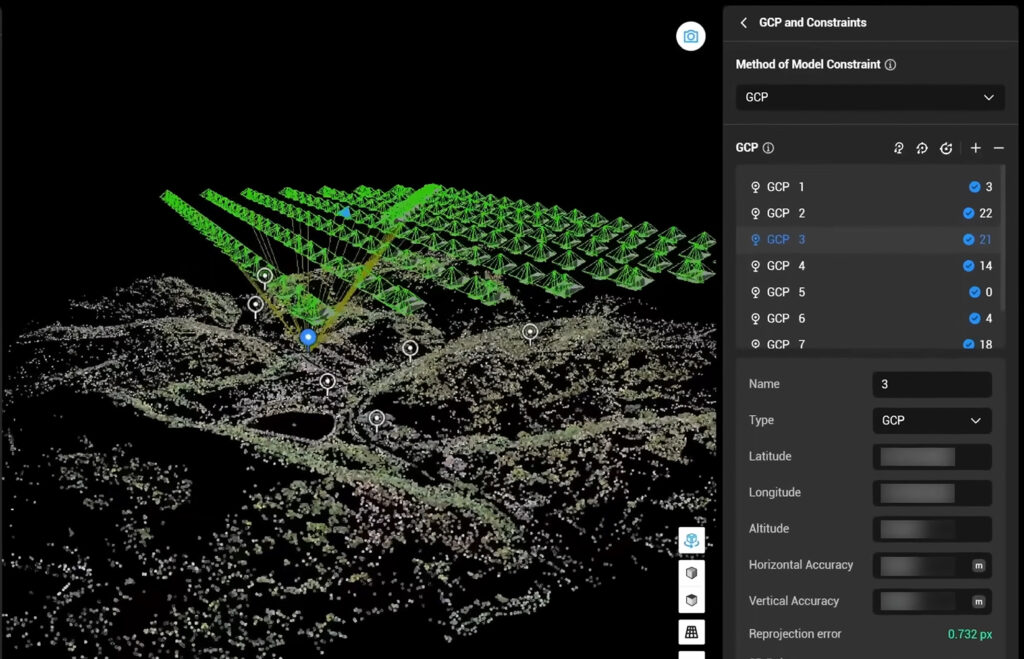
Although Auto GCP reduces manual work during processing, the quality of the results still depends on the quality of the field setup. Poorly placed or difficult-to-identify targets may not be detected automatically.
Auto GCP supports coordinate measurements collected with the DJI D-RTK 3 as well as third-party RTK surveying equipment.
When importing data from third-party systems, the coordinate file must include both:
The file should follow DJI Terra’s required field structure and be saved in either TXT or CSV format before import.
This allows existing surveying procedures and equipment to be used without modification when preparing GCP data for processing in DJI Terra.
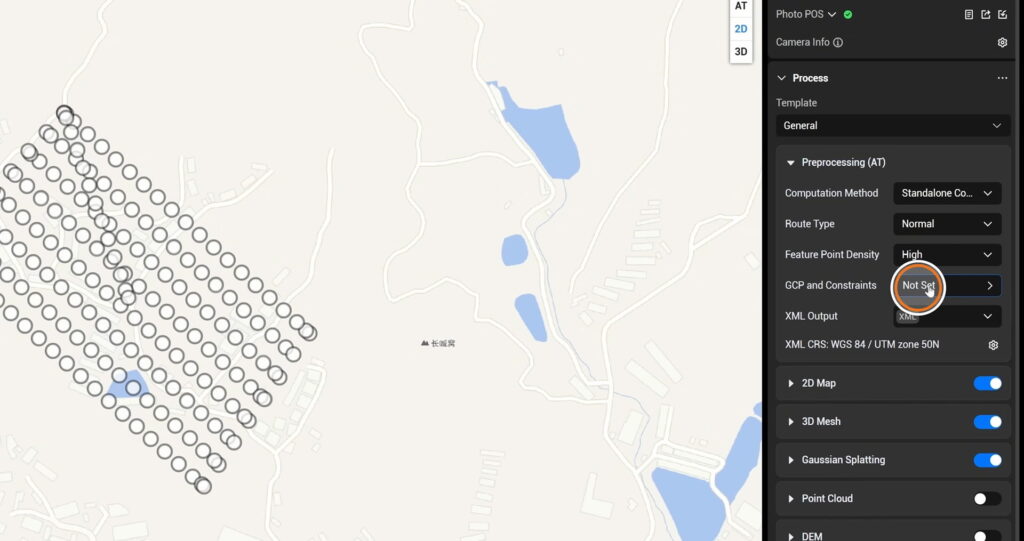
After creating a visible-light reconstruction project, navigate to the Pre-processing section and open the GCP and Constraints panel.
Select Import Mark and load the exported measurement file. The GCPs will be added to the project automatically.
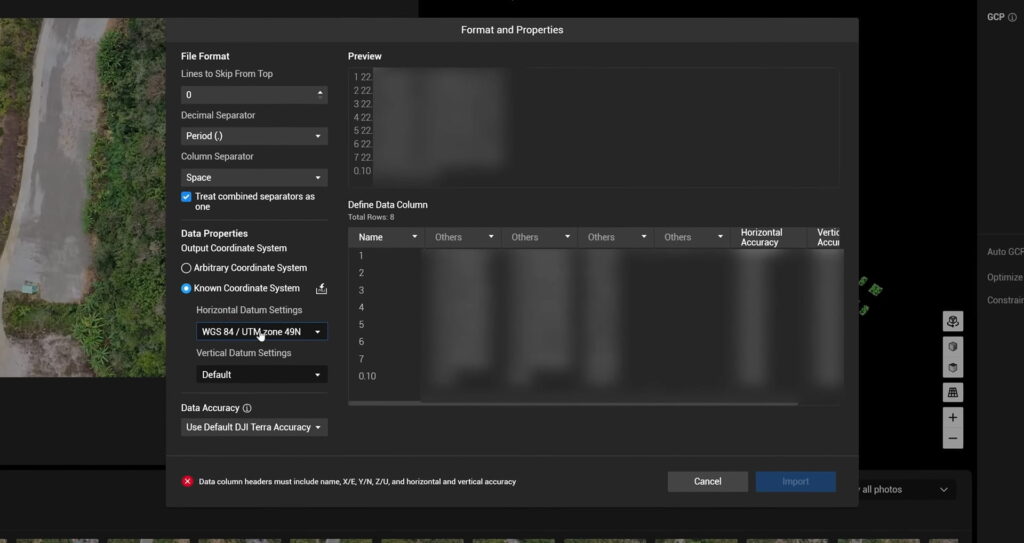
Select Import GCP and load the prepared coordinate file. If the project uses an arbitrary coordinate system, configure the corresponding WGS84 parameters in the coordinate system settings before proceeding.
After importing the coordinate data, enable Auto GCP and start aerial triangulation.
During triangulation, DJI Terra analyzes the imagery, locates supported GCP targets, creates the required image observations, and incorporates them into the triangulation process.
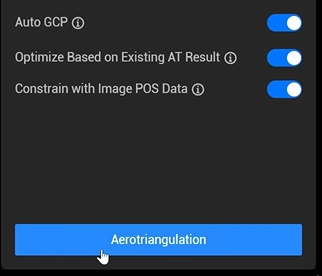
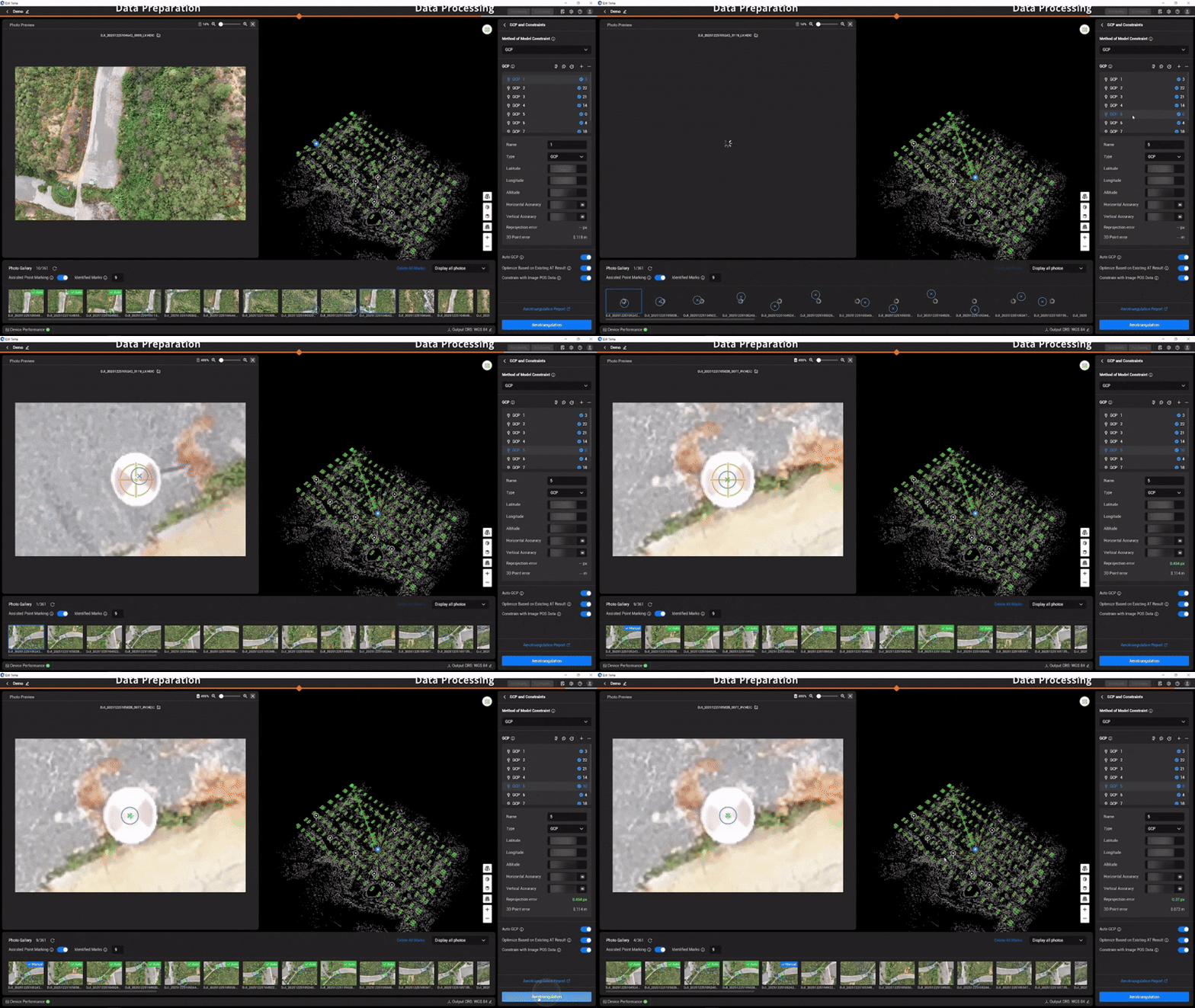
After aerial triangulation is complete, open the GCP Management page to review the automatically matched points.
In many cases, all targets will be detected and matched automatically. However, field conditions, image quality, or target visibility can sometimes affect the matching process.
If a target was not detected correctly, users can manually add observations in several images. DJI Terra will then use these references to automatically locate the same GCP in additional photographs.
After the necessary corrections have been made, rerun aerial triangulation to update the project with the revised GCP observations.
Ground Control Points remain an important tool for improving the absolute accuracy of photogrammetric products. The challenge is not collecting the coordinates, but associating each control point with the corresponding locations in the image dataset.
Auto GCP automates much of this matching process by detecting supported targets and generating image observations automatically. Instead of manually marking every occurrence of a control point, operators can review the automatically generated matches and make corrections only when necessary.
For projects that contain large numbers of images and GCPs, this can substantially reduce the amount of time spent on post-processing while maintaining the same GCP-based reconstruction workflow.